
A Shared Calendar With Friends, Right Inside Claude
What is SoKal for Claude? SoKal is a shared calendar built for friends that works in Claude, and it's available in Claude's connector directory. Once it's connected, you can ask Claude what your friends are up to, find a time that works for everyone, and send the invite without opening another app. Claude only sees what SoKal already shows you, and it asks before it tells anyone anything.
Most group plans die in the group chat. Someone asks who's free Saturday, three people answer, two don't, and by Thursday nobody remembers which day won. The plan was never the hard part. Finding out when everyone could actually make it was.
SoKal is a shared calendar for friends that connects to Claude, so you can ask Claude about your friends' plans, find a time, and send invites. You ask in plain words. Claude checks your friends' calendars at the detail each of them shares with you, and the invite goes out once you say yes.
A quick note before we start: SoKal is our app. I'm James, and I build it. This guide covers what it does in Claude today, how it keeps your friends' plans private, and how to set it up in about two minutes.
What can you do with SoKal in Claude?
You can check your week and a friend's, find a time for up to five friends, plan a trip or a dinner at a real place, see who's coming, and get your invite link, all from one chat. Here's each one with a prompt you can copy.
See your week, and what a friend is up to
"What's on my calendar this week, and what's Maya up to?"
Claude lists your own events, including plans you've said yes to and events you synced from Google Calendar or Outlook, along with who else is going. For a friend, it shows their plans at the detail that friend shares with you. Anything they keep private shows as Busy, with a start and end time and nothing else.
Find a time that works for you and your friends
"When can Maya, Sam and I get dinner next week?"
Claude checks your calendar and up to five friends' at once and comes back with two or three times, each with a suggested start and end. When no time suits everyone, it offers times that suit all but one person and says who can't make them and why. Often the why is just "Busy", because that's all that friend shares.
Plan a long weekend with friends
"Find a long weekend in the next month when Maya, Sam, Priya and I are all free, suggest somewhere between where we live, and send the trip invite."
Ask for a trip and SoKal looks for runs of whole days instead of evenings, with weekends and public-holiday long weekends first. It also gives Claude each person's home city, city only, so Claude can suggest somewhere in between. That suggestion comes from Claude: SoKal supplies the free dates and the cities. Once you've picked, Claude drafts the trip invite, or two or three date options for your friends to choose from, and sends it when you confirm.
Plan dinner at a real place and invite your friends
"Plan dinner at Kassi on Venice Beach with Maya on Tuesday at 7."
Claude finds the place on Google Maps, with its address and a link to it on Maps. Then it shows you one summary: what, when, where, and who gets invited. Nothing has been sent at that point. Once you confirm, the invite lands in their SoKal app, with a notification if they have them on.
See who's coming, and who can see what
"Who's coming to my party on Saturday?"
"Who's in my Close friends, and what can Theo see?"
For any event you can see, Claude lists who's on it and how each person replied: going, maybe, declined or invited. It can also read your friend groups, such as Close friends, Friends and Acquaintances, and tell you which kinds of plans a given friend sees on your calendar. Changing your groups still happens in the app.
Get your invite link
"Give me my SoKal invite link so I can send it to my sister."
Claude gives you your personal invite link and a one-line message to go with it. It doesn't send anything. You share the link yourself, wherever you already talk to your friends.
With View and edit access, Claude can also add, move and delete your own events. A change to an event only you are on happens right away. Anything that would tell someone else waits for your yes.
Can Claude see my friends' calendars?
Only at the detail each friend already shares with you in SoKal, never more. Here's how SoKal keeps your calendar, and your friends' plans, safe when Claude is connected.
- Claude asks first. Deleting an event, inviting friends, making a plan with friends, adding a trip, or changing a plan other people are on all come back as a summary that SoKal writes: what, when, where, and who gets told. Nothing happens until you say yes, and a summary you don't answer expires after 28 minutes.
- Private stays private. A friend's plans that they don't share with you show as Busy. Events your friends synced from Google Calendar or Outlook always show as Busy to Claude, even when that friend shares that kind of event with you.
- Friends only. Claude can only invite people who are already your friends on SoKal. It can't text phone numbers or message anyone for you.
- You choose the access. View only lets Claude read your calendar and your friends' free time. View and edit also lets it add, change and delete your own events and invite your friends.
- Disconnect any time. Remove SoKal in Claude, or in SoKal on the web open Settings › AI assistants and choose Disconnect next to Claude, which ends its access straight away.
Our Privacy Policy spells out what a connected assistant can see and what we keep.
How do I connect Claude to a shared calendar?
Add SoKal from Claude's connector directory, sign in, and choose how much Claude can do. It takes about two minutes. You need a SoKal account, free in the app or at sokal.app, and a Claude account.
Open Claude's connector directory. Go to claude.ai/directory. In the Claude app you can also open Customize, then Connectors, and click +.

Step 1: open claude.ai/directory. Search for SoKal. Type SoKal in the search box. SoKal shows as a Community connector by SoKal. Click it to open its listing.
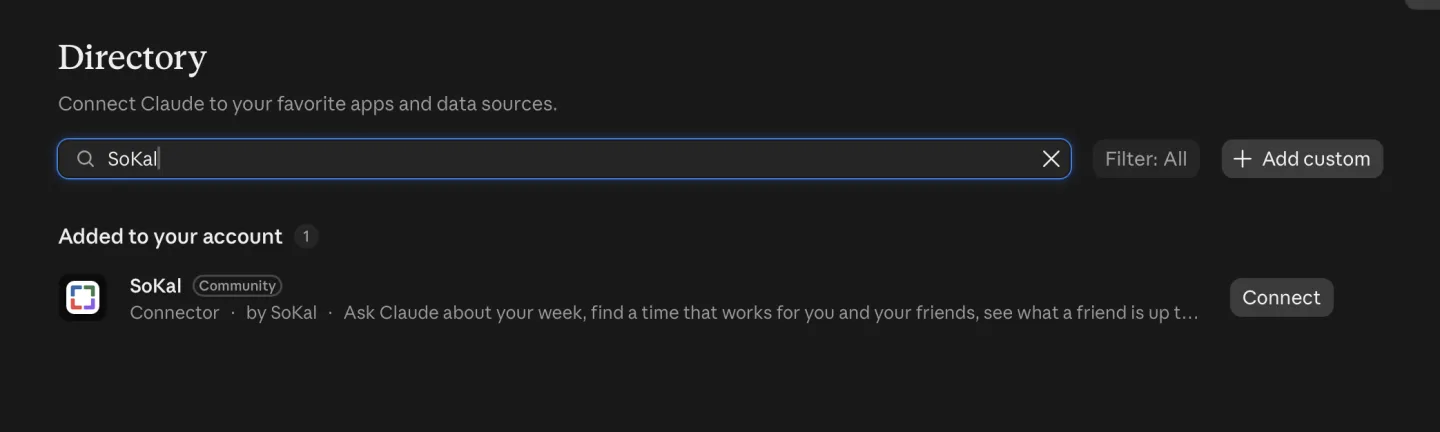
Step 2: search for SoKal. Click Connect to Claude. On SoKal's listing, click Connect to Claude. The Connect button in the search results does the same.
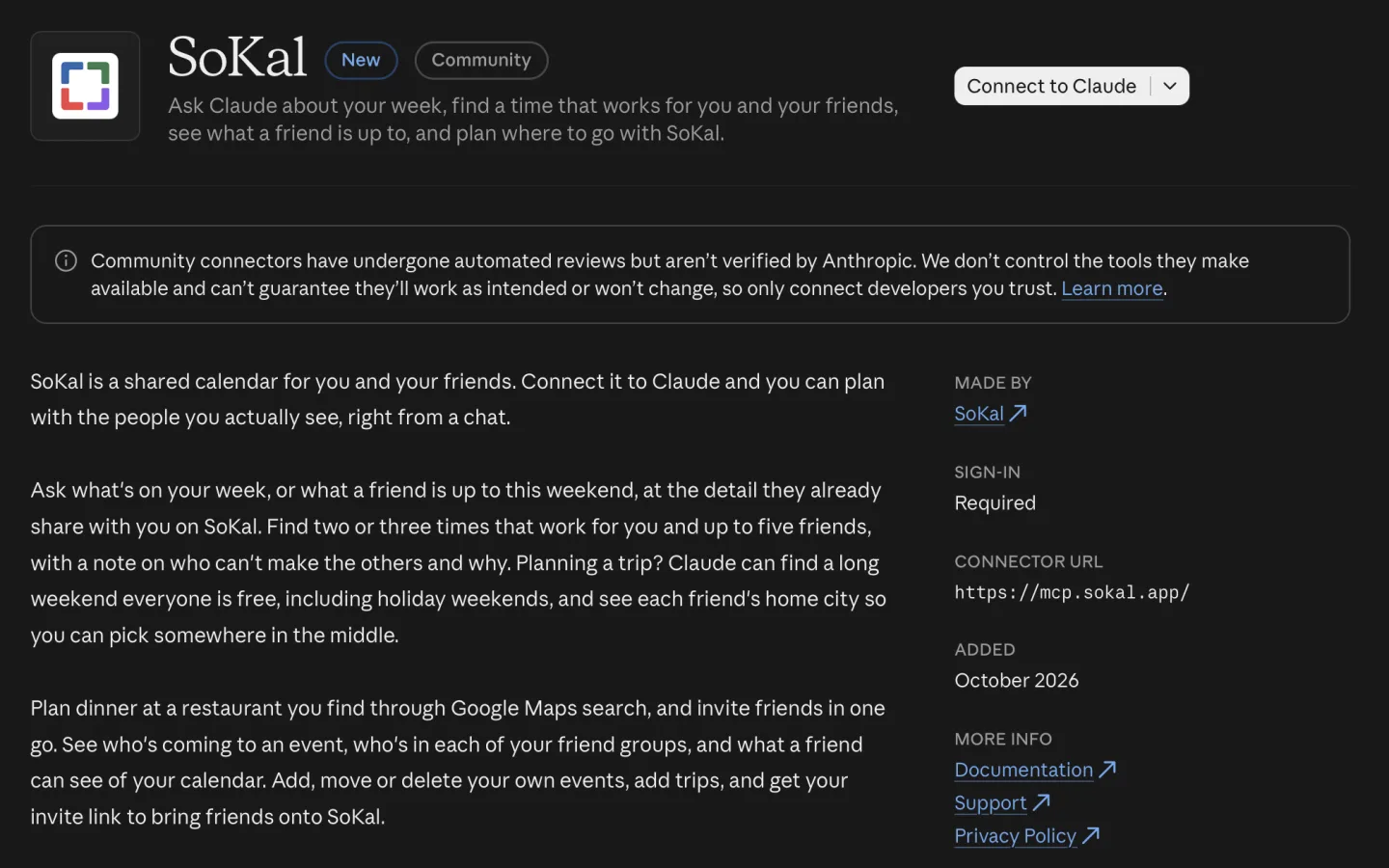
Step 3: click Connect to Claude on SoKal's listing. Sign in to SoKal. A SoKal page opens. Sign in with your phone number, with Google, or with your email and password. Signed up with Apple? Apple sign-in isn't on this page, so first verify your phone number in the SoKal app (your profile, then Edit profile, then Phone numbers), then sign in here with that number.
Choose View only or View and edit. Pick how much Claude can do, then click Allow. You're taken back to Claude.
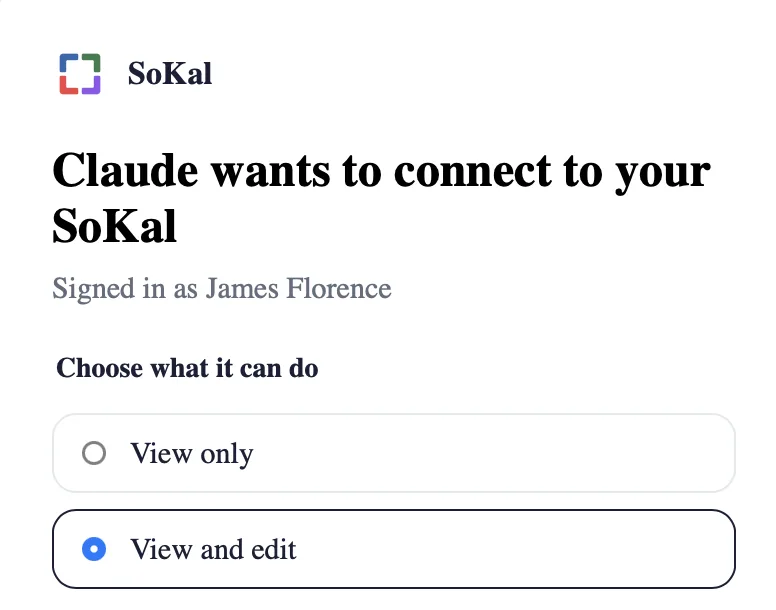
Step 5: choose View only or View and edit. Check that SoKal is connected. In Claude, open Customize, then Connectors, and choose Yours (not Discover). SoKal should be listed there.
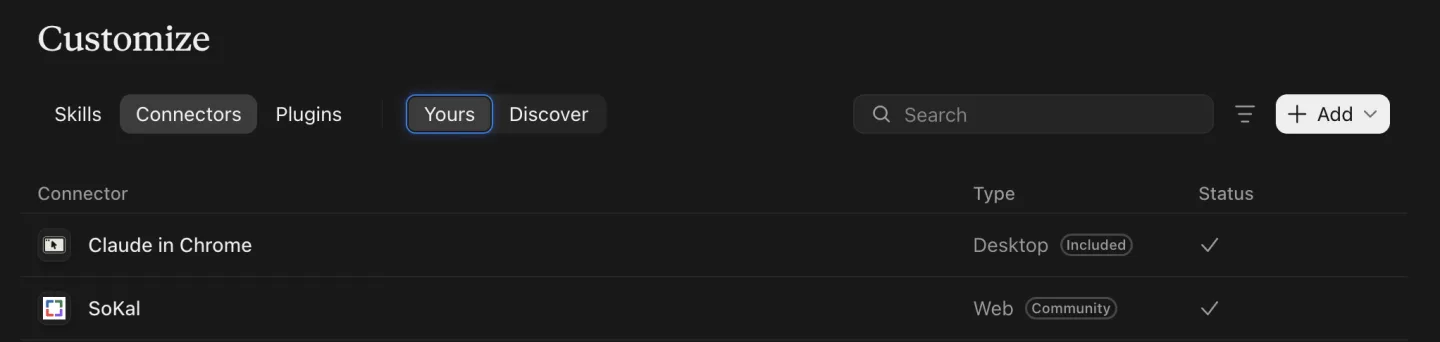
Step 6: in Customize, then Connectors, choose Yours and check SoKal is listed. Try a prompt. Ask "What's on my calendar this week, and who's free Friday night?"
Connectors from Claude's directory are available to every Claude user, on the web, in Claude Desktop and in the Claude apps for iPhone and Android. Once you've connected SoKal on the web or desktop, it's there the next time you open Claude on your phone. On Team and Enterprise plans, an Owner enables a connector for the organization first, and then each person connects their own account.
Or add it by URL
If you'd rather not use the directory, add SoKal as a custom connector. In Claude, open Customize, then
Connectors, click + Add, choose Add custom connector and paste https://mcp.sokal.app. Then
carry on from step 4. Custom connectors are available on Free, Pro, Max, Team and Enterprise plans,
and Free accounts can add one.
More detail, and a ten-minute test that tries everything: SoKal for Claude.
How is SoKal different from a regular Claude calendar integration?
A connector to your own calendar reads the calendars your account can open. SoKal is built around friends: it knows who your friends are, what each one shares with you, and how to invite them.
| What you can do | SoKal in Claude | A connector to your own calendar |
|---|---|---|
| Your own events | Yes, including Google Calendar and Outlook events you synced into SoKal | Yes |
| Friends' plans | Each friend's plans at the detail they share, with the rest shown as Busy | Only calendars that have been shared with your account |
| Finding a time | You and up to five friends at once, with who can't make it and why | Across the calendars your account can read |
| Inviting friends | Your SoKal friends, after you confirm a summary | Depends on the calendar |
| Privacy per friend | Your friend groups decide which kinds of plans each friend sees | Set by whoever shares each calendar |
Invite three friends and Claude can plan with all of them
The more of your friends are on SoKal, the more Claude can plan for you. With three friends connected, "when are we all free?" has a real answer.
Claude only sees and invites people who are your friends on SoKal. That's the same rule that stops it from texting strangers, and it's why the first useful thing to ask is:
"Give me my SoKal invite link and a short message to send my friends."
Send it to the three people you make the most plans with. Once they've joined and you're connected, ask Claude to find a time for all of you.
Common questions
Is SoKal for Claude free?
Yes. SoKal is free, with no subscription. Connectors from Claude's connector directory are available to every Claude user. On Team and Enterprise plans, an Owner enables a connector for the organization before people can connect it.
Is SoKal in Claude's connector directory?
Yes. SoKal is available in Claude's connector directory, with a Community label. Go to claude.ai/directory and search for SoKal, or in Claude open Customize, then Connectors.
Can Claude see my friends' private plans?
No. Claude sees a friend's plans at the detail that friend already shares with you in SoKal. Anything else shows as Busy, with a start and end time and nothing more. Events your friends synced from Google Calendar or Outlook always show as Busy.
Can Claude send invites without asking me?
No. Inviting friends, planning with friends, adding a trip, deleting an event or changing a plan other people are on all come back as a summary first: what, when, where and who gets told. Nothing happens until you say yes, and a summary you don't answer expires after 28 minutes. Claude can only invite your SoKal friends, and it never texts phone numbers.
I signed up for SoKal with Apple. How do I connect Claude?
The SoKal sign-in page that opens from Claude doesn't offer Apple. Verify your phone number in the SoKal app first: open your profile, tap Edit profile, then Phone numbers. Then connect Claude and sign in with that phone number.
Does SoKal work with ChatGPT or Gemini?
ChatGPT, yes. On a paid ChatGPT plan (Plus or higher) you can add SoKal as a custom MCP server with the address https://mcp.sokal.app. This takes a few steps for now. One-tap setup is coming once SoKal is in ChatGPT's app directory, and setup steps are at sokal.app/chatgpt. Gemini, yes, as a custom app. For now Google limits custom apps to personal accounts in the US, 18+. Setup steps are at sokal.app/gemini.
How do I disconnect SoKal from Claude?
In Claude, open Customize, then Connectors, choose SoKal and disconnect it. You can also do it in SoKal on the web: open Settings › AI assistants and choose Disconnect next to Claude. That ends its access straight away.
Does SoKal use my calendar to train AI?
No. SoKal doesn't use your calendar to train AI models. Claude is made by Anthropic, a separate company. Whether your chats with Claude, including what SoKal returns in them, are used to train Anthropic's models is your choice in Claude's privacy settings.
Plan with your friends in Claude
SoKal is free. Make your account, add three friends, then connect it to Claude.


Setting it up? See SoKal for Claude, or download SoKal for every device.